最近使用WSL频率较高,由于Windows配置了OhMyPosh,看习惯了花里胡哨忽然进入简约的Debian有些别扭,于是就想干脆给Debian也安装一个Oh my zsh算了。

目前Debian就两个用户,一个普通,一个root,建议给这两个用户分开安装,不要全系统共享,避免因为更新后出现权限问题。

安装Oh My ZSH

对于debian,使用如下命令即可安装(对于需要zsh的用户,每个都执行一次)

1
sh -c "$(curl -fsSL https://raw.githubusercontent.com/ohmyzsh/ohmyzsh/master/tools/install.sh)"

安装过程中会提示你是否将zsh设置为默认shell,选择Y

1
Do you want to change your default shell to zsh? [Y/n] y

安装主题

Oh My ZSH的主题有很多,具体看一参考这里,个人比较推荐**powerlevel10k**

1
git clone --depth=1 https://github.com/romkatv/powerlevel10k.git "${ZSH_CUSTOM:-$HOME/.oh-my-zsh/custom}/themes/powerlevel10k"

打开 ~/.zshrc ,将ZSH_THEME的值修改为powerlevel10k/powerlevel10k

1
2
3
vim ~/.zshrc

ZSH_THEME="powerlevel10k/powerlevel10k"

安装字体

为了显示一些特殊的图标字符,需要安装一些字体,官方推荐MesloLGS NF,而我Windows上安装的是JetBrainsMono NF(除了个别图标,其他的基本上没区别,甚至JetBrainsMono NF更适合程序员),会造成一些小图标显示为□。

点击下载链接,下载这四个文件:

下载到Windows后,分别双击安装即可。

配置PowerShell

打开PowerShell,点击标题栏的下三角,打开设置(快捷键:ctrl + .)
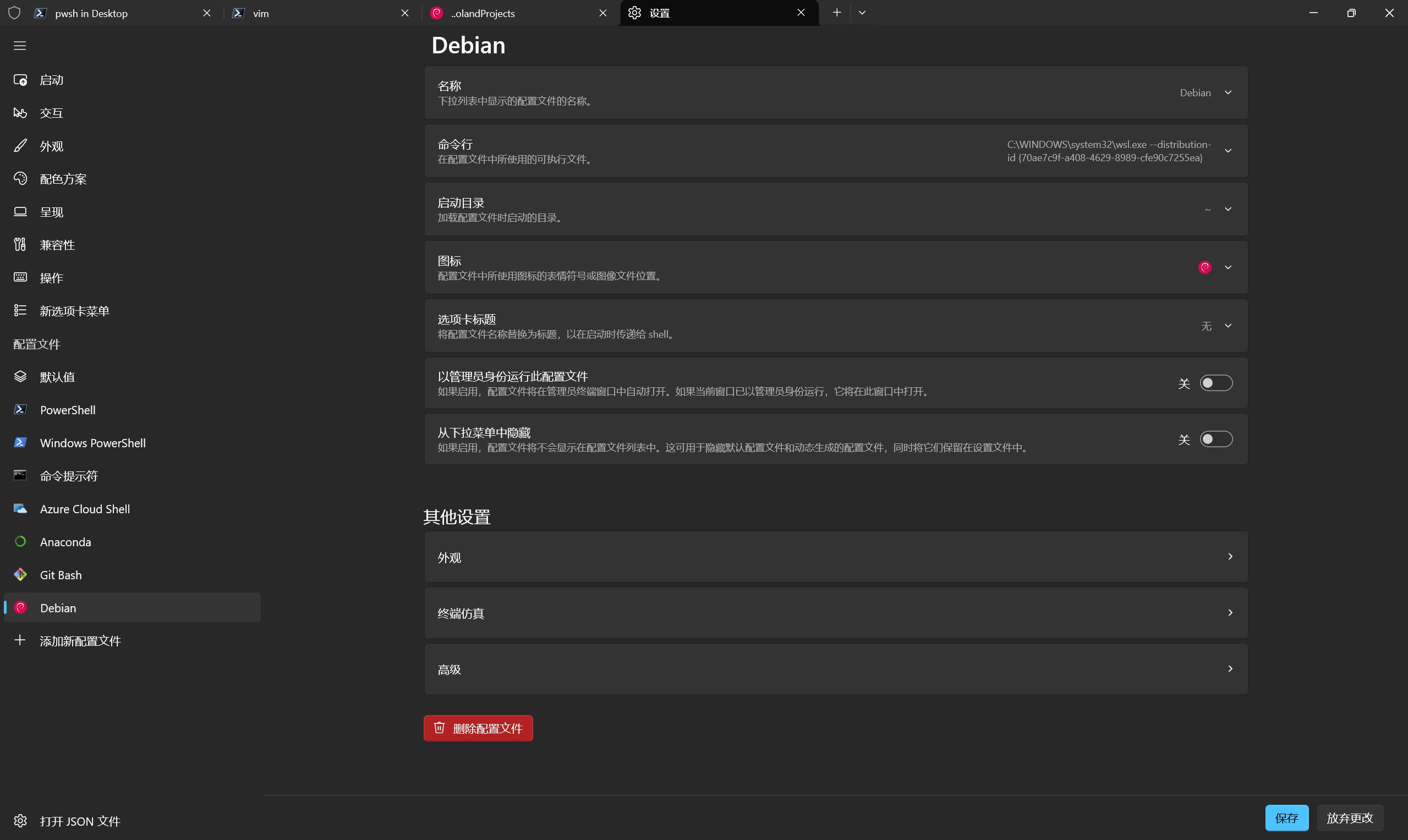
点击外观,将字体修改为MesloLGS NF。点击保存即可。

接着在Debian(在PowerShell打开Debian标签)中输入如下,检查字体是否正确

1
echo "\ue0b0 \u00b1 \ue0a0 \u27a6 \u2718 \u26a1 \u2699"

此时会输出一些图标。

配置主题

字体安装完成后,就可以配置主题了,使用p10k configure打开配置

1
2
3
4
5
6
7
8
9
10
11
12
13
14
15
16
17
18
19
20
21
22
23
24
25
26
27
28
29
30
31
32
33
34
35
36
37
38
39
p10k configure

# 第一步 是否正确显示了菱形,如果显示正确说明字体渲染成功,选择 Y

# 第二步 是否正确显示了🔒,如果显示正确,选择Y

# 第三步 是否正确显示了向上的箭头,如果显示正确,选择Y (选择N也没关系,只是做个检查而已)

# 第四步 有个箭头会指向一串数字中的某一个,输入指向的数字即可,一般就是1和2,箭头指向谁,输出谁

# 第五步 图标是否被挤在一起,选择Y即可,一般安装完字体后就没啥问题了

# 第六步 选择Prompt Style ,有四个选项,看你喜欢那个,我比较喜欢 Rainbow 输入 3

# 第七步 选择编码,一般就Unicode,输入 1

# 第八步 选择展示当前时间,我比较喜欢24小时制 输入 2

# 第九步 选择分隔符,看你个人喜好,我选择Angled,输入 1

# 第十步 选择Prompt Heads ,我选择Sharp 输入 3

# 第十一步 Prompt Tails,尾部时间样式,我喜欢Flat 输入 1

# 第十二步 单行还是双行,个人喜欢单行。 输入 1

# 第十三步 紧凑还是宽松,我喜欢宽松 Sparse 输入 2

# 第十四步 图标个数,华丽花哨就选择Many icons,简约点就Few icons ,我个人输入 2

# 第十五步 选择 1 就行,上一步图标以及很华丽了,没必要更详细的说明

# 第十六步 是否开启瞬时提示符,这个仁者见仁智者见智,效果就是只有当前命令行才需要这些华丽花哨,使用回车后的命令都会显示为简单的> xxx ,这样可以节约资源,也能更好的复制命令,通常推荐Y

# 第十七步 ,预渲染 选择推荐选项即可 Verbose 输入 1

# 第十八步,将配置保(覆)存(盖)在~/.p10k.zsh, 选择Y


当然,越花里胡哨,执行命令时越卡顿。

安装插件

oh my zsh自带一些插件,包括powerlevel10k也有自己的插件,如果需要更强的功能,那么还需要单独安装三个插件

自动提示插件

根据历史记录建议命令(按 键补全)。安装命令如下:

1
git clone https://github.com/zsh-users/zsh-autosuggestions ${ZSH_CUSTOM:-~/.oh-my-zsh/custom}/plugins/zsh-autosuggestions

增强补全

为命令提供更强大的 Tab 键补全。

1
git clone https://github.com/zsh-users/zsh-completions ${ZSH_CUSTOM:-~/.oh-my-zsh/custom}/plugins/zsh-completions

语法高亮

命令正确显示绿色,错误显示红色,提前发现拼写错误。

1
git clone https://github.com/zsh-users/zsh-syntax-highlighting.git ${ZSH_CUSTOM:-~/.oh-my-zsh/custom}/plugins/zsh-syntax-highlighting

配置到插件时,务必配置在插件列表的最后一项,如果它放在中间,会和其他插件冲突导致输入字符时有明显的粘滞感。

配置插件,打开~/.zshrc,在plugins选项中配置如下:

1
2
3
4
5
6
7
8
plugins=(
git
sudo
z
zsh-autosuggestions
zsh-completions
zsh-syntax-highlighting
)

每个插件用空格隔开(单行),或者如上方式(多行)。注意插件越多,敲命令也会月卡顿。非不要插件尽量不要开启。下面介绍下插件介绍

  • git :zsh默认自带插件,提供了非常多git的缩写命令,例如git status 可以直接输入 gst
  • sudo:执行命令是会提示权限不够,按两下esc,自动在命令前面添加sudo
  • z :最强路径跳转。它会记住你常去的目录,输入 z spark 就能直接跳到你那个深层的 Spark 项目目录。
  • extract(未启用):一个命令解压所有压缩包,个人还是习惯敲对应的命令,敲习惯了也忘不了。

解决卡顿问题

以上配置完,终端是好看了,但一个很影响体验的就是卡顿。输入命令会有明显卡顿,这主要来自三个方面:zsh本身插件过多、主题自带的一些功能(例如检查jdk版本,git仓库等)、还有就是wsl会扫描Windows的一些环境变量,每次都会很慢。

过滤Windows的环境变量

如果在WSL的Debian中输入echo $PATH,会输出大量的Windows的环境变量例如

1
/mnt/d/devtools/go/bin:/mnt/d/devtools/scala/scala-2.13.8/bin:/mnt/d/devtools/gradle-7.5.1/bin:/mnt/d/devtools/python/python310:

WSL本身访问/mnt这类的路径就很慢,所以每次执行命令都要扫描一边就会更慢了,解决办法就是将其过略,在~/.zshrc配置文件的最顶部,添加如下代码:

1
path=(${path:#/mnt/*})

即可过滤掉/mnt/c/的一些环境变量。source一下使其生效,效果还比较明显。

禁用右侧提示

这里需要编辑powerlevel10k主题的配置文件,编辑~/.p10k.zsh,找到java_version,将不需要的全部注释

1
2
3
4
5
6
7
8
9
10
11
12
13
14
15
16
17
18
19
20
21
22
23
24
25
26
27
28
29
30
31
32
33
34
35
36
37
38
39
40
41
42
43
44
45
46
47
48
49
50
51
52
53
54
55
56
57
58
59
60
61
62
63
64
65
66
67
68
typeset -g POWERLEVEL9K_RIGHT_PROMPT_ELEMENTS=(
status # exit code of the last command
command_execution_time # duration of the last command
background_jobs # presence of background jobs
direnv # direnv status (https://direnv.net/)
asdf # asdf version manager (https://github.com/asdf-vm/asdf)
virtualenv # python virtual environment (https://docs.python.org/3/library/venv.html)
anaconda # conda environment (https://conda.io/)
pyenv # python environment (https://github.com/pyenv/pyenv)
goenv # go environment (https://github.com/syndbg/goenv)
nodenv # node.js version from nodenv (https://github.com/nodenv/nodenv)
nvm # node.js version from nvm (https://github.com/nvm-sh/nvm)
nodeenv # node.js environment (https://github.com/ekalinin/nodeenv)
# node_version # node.js version
# go_version # go version (https://golang.org)
# rust_version # rustc version (https://www.rust-lang.org)
# dotnet_version # .NET version (https://dotnet.microsoft.com)
# php_version # php version (https://www.php.net/)
# laravel_version # laravel php framework version (https://laravel.com/)
# java_version # java version (https://www.java.com/)
# package # name@version from package.json (https://docs.npmjs.com/files/package.json)
# rbenv # ruby version from rbenv (https://github.com/rbenv/rbenv)
# rvm # ruby version from rvm (https://rvm.io)
fvm # flutter version management (https://github.com/leoafarias/fvm)
plenv # perl version from plenv (https://github.com/tokuhirom/plenv)
perlbrew # perl version from perlbrew (https://github.com/gugod/App-perlbrew)
# phpenv # php version from phpenv (https://github.com/phpenv/phpenv)
# scalaenv # scala version from scalaenv (https://github.com/scalaenv/scalaenv)
haskell_stack # haskell version from stack (https://haskellstack.org/)
kubecontext # current kubernetes context (https://kubernetes.io/)
terraform # terraform workspace (https://www.terraform.io)
# terraform_version # terraform version (https://www.terraform.io)
# aws # aws profile (https://docs.aws.amazon.com/cli/latest/userguide/cli-configure-profiles.html)
# aws_eb_env # aws elastic beanstalk environment (https://aws.amazon.com/elasticbeanstalk/)
# azure # azure account name (https://docs.microsoft.com/en-us/cli/azure)
# gcloud # google cloud cli account and project (https://cloud.google.com/)
# google_app_cred # google application credentials (https://cloud.google.com/docs/authentication/production)
# toolbox # toolbox name (https://github.com/containers/toolbox)
context # user@hostname
# nordvpn # nordvpn connection status, linux only (https://nordvpn.com/)
ranger # ranger shell (https://github.com/ranger/ranger)
yazi # yazi shell (https://github.com/sxyazi/yazi)
nnn # nnn shell (https://github.com/jarun/nnn)
lf # lf shell (https://github.com/gokcehan/lf)
xplr # xplr shell (https://github.com/sayanarijit/xplr)
vim_shell # vim shell indicator (:sh)
midnight_commander # midnight commander shell (https://midnight-commander.org/)
nix_shell # nix shell (https://nixos.org/nixos/nix-pills/developing-with-nix-shell.html)
chezmoi_shell # chezmoi shell (https://www.chezmoi.io/)
vi_mode # vi mode (you don't need this if you've enabled prompt_char)
# vpn_ip # virtual private network indicator
# load # CPU load
# disk_usage # disk usage
# ram # free RAM
# swap # used swap
todo # todo items (https://github.com/todotxt/todo.txt-cli)
timewarrior # timewarrior tracking status (https://timewarrior.net/)
taskwarrior # taskwarrior task count (https://taskwarrior.org/)
per_directory_history # Oh My Zsh per-directory-history local/global indicator
# cpu_arch # CPU architecture
time # current time
# ip # ip address and bandwidth usage for a specified network interface
# public_ip # public IP address
# proxy # system-wide http/https/ftp proxy
# battery # internal battery
# wifi # wifi speed
# example # example user-defined segment (see prompt_example function below)
)

修改完成后,source ~/.zshrc即可生效。